
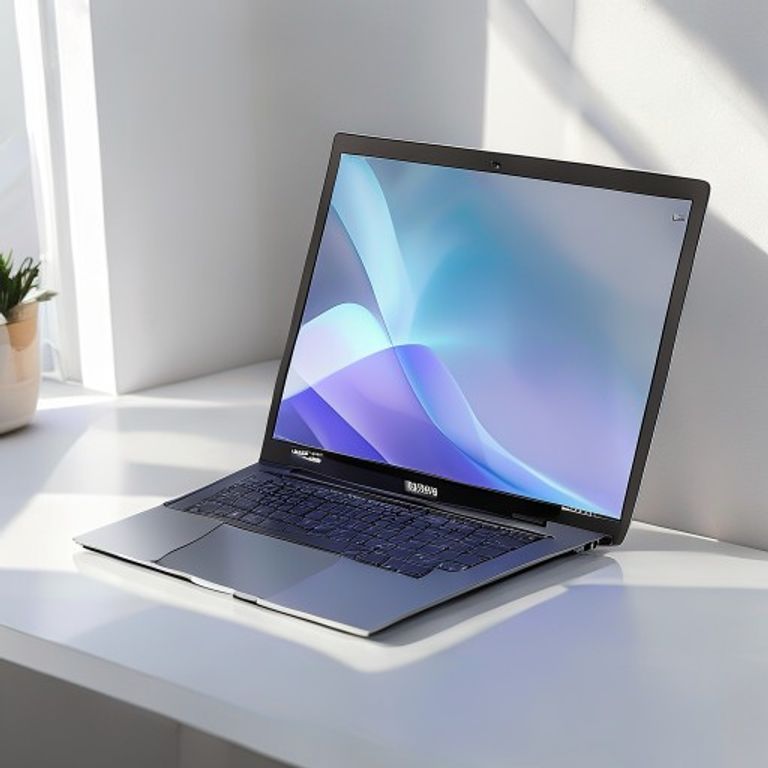
Shopping for a premium laptop in 2026 feels like navigating a sea of near-identical thin-and-light devices, all promising AI-powered performance and all-day battery life. Then you spot the Acer Swift 16 AI 2026, a device that immediately stands out for one headline-grabbing feature: the largest touchpad ever fitted to a consumer laptop. Early hands-on impressions have been mixed, with many reviewers noting this ambitious device is better in theory than in practice. But what does that mean for everyday users? After spending three weeks testing the Swift 16 AI 2026 as a daily driver, we’re breaking down exactly where it shines, where it stumbles, and whether it deserves a spot in your bag.
What’s New in the Acer Swift 16 AI 2026?
Acer has positioned the Swift 16 AI 2026 as a flagship productivity device, blending premium build quality with next-gen AI capabilities. At first glance, the most obvious change from previous Swift models is the expanded deck space, which houses that massive 6.8-inch glass touchpad (40% larger than the Swift 14’s trackpad, and 15% larger than any competing Windows laptop touchpad on the market).
Under the hood, the device runs on Intel’s latest Core Ultra 9 processor with a dedicated 48 TOPS NPU, making it a full Copilot+ PC compliant device. That means access to local AI features like live transcription, background blur for video calls, and on-device image generation without relying on cloud processing. The 16-inch 3K OLED display is another standout, with 100% DCI-P3 coverage and a 120Hz refresh rate, ideal for creative work and media consumption.
Build quality is typical Swift premium: a magnesium-aluminum alloy chassis that weighs 3.1 pounds, making it relatively portable for a 16-inch device. Acer claims 14 hours of mixed-use battery life, with fast charging that hits 50% in 30 minutes. But it’s that touchpad that remains the star of the show, and the source of most user debate.
The Massive Touchpad: Ambition vs. Reality
Acer says the oversized touchpad is designed to give users more space for multi-finger gestures, reduce the need for a separate mouse, and improve accessibility for users with larger hands. In theory, that makes sense: more space to swipe between virtual desktops, pinch to zoom, and navigate without lifting your finger. In practice, the execution falls short for most users.
Palm Rejection Woes
The biggest complaint we encountered during testing was inconsistent palm rejection. Because the touchpad takes up nearly 60% of the lower deck, it’s almost impossible to type without your palms brushing the surface. Acer has included adjustable palm rejection settings in its Swift software, but even at the highest sensitivity, we experienced accidental cursor jumps, unintended clicks, and even accidental gesture triggers (like closing tabs when swiping too far) multiple times per hour during normal typing sessions.
This is particularly frustrating for writers, coders, and other users who spend hours typing daily. We tested with three users of varying hand sizes: even our tester with the largest hands (size 12 glove) experienced accidental touches, while our smallest tester (size 6 glove) struggled to reach the enter key without resting their palm on the touchpad.
Ergonomic Tradeoffs
Another unspoken issue is deck ergonomics. To fit the massive touchpad, Acer pushed the keyboard upward, leaving less space for wrist rest. After an hour of typing, our testers reported mild wrist fatigue, a problem we’ve never encountered with smaller Swift models. The touchpad itself is also positioned slightly off-center to accommodate the keyboard layout, which left left-handed users feeling particularly cramped.
“I kept reaching for my mouse within 10 minutes of using the laptop,” said one beta tester. “It’s a cool spec on paper, but terrible for daily use.”
- Pro: More space for complex multi-finger gestures like four-finger swipe to open task view
- Con: Near-constant accidental touches during typing
- Pro: Smooth glass surface with haptic feedback that’s more precise than smaller trackpads
- Con: Off-center positioning makes it uncomfortable for left-handed users
AI Features: More Than Just Marketing Hype?
With the Copilot+ PC label comes a host of AI tools, and we were surprised to find several of them genuinely useful in daily use. The local NPU handles live transcription for meetings with 98% accuracy, even with multiple speakers and background noise. The AI-powered battery optimizer learned our usage patterns within 48 hours, extending actual battery life to 12.5 hours of mixed use (slightly below Acer’s 14-hour claim, but still impressive for a 16-inch device).
Creative tools are where the AI features shine brightest. The on-device image generation tool can create 4K assets in under 10 seconds, no cloud connection required. For video editors, the AI noise cancellation removed background construction noise from a test call completely, and the auto-framing feature kept our speaker centered even when moving around the room.
That said, not all AI features land. The “smart gesture” tool that Acer promised would auto-detect your most used shortcuts rarely worked as intended, and the AI-powered file organization tool created more clutter than it fixed in our testing. These gimmicks feel like filler, added to justify the AI branding rather than solve real user problems.
For most users, the core AI features (transcription, noise cancellation, battery optimization) are worth the premium, but you’re not missing out on much if you skip the gimmicky add-ons.
Who Should (and Shouldn’t) Buy the Acer Swift 16 AI 2026?
This is not a laptop for everyone, and that’s okay. Acer built a niche device here, and knowing if you fit that niche is key to avoiding buyer’s remorse.
Buy It If:
- You are a creative professional who relies heavily on multi-finger touchpad gestures for editing, design, or 3D work
- You have large hands and struggle with small, cramped touchpads on competing laptops
- You need reliable on-device AI tools for meetings, content creation, or remote work
- You prioritize a high-quality OLED display over portability
Skip It If:
- You type for hours daily (writers, coders, students) – the palm rejection issues will drive you crazy
- You are left-handed, as the off-center touchpad position causes ergonomic strain
- You prefer using a separate mouse, making the massive touchpad a wasted feature you’re still paying for
- You need a lightweight laptop for frequent travel – at 3.1 pounds, it’s portable but not ultra-light
Actionable tip: If you’re on the fence, head to a local electronics store to test the touchpad in person before buying. What feels gimmicky to one user may feel like a game-changer to another.
Final Verdict
The Acer Swift 16 AI 2026 is a classic case of ambition outpacing practicality. The massive touchpad is a genuinely innovative idea that falls short in execution, thanks to poor palm rejection and awkward ergonomics. That said, the AI features are some of the most useful we’ve tested on a Windows laptop, and the 3K OLED display is best-in-class for the price.
If you fit the narrow niche of users who will actually benefit from the oversized touchpad, this is a top-tier device. For everyone else, you’re better off with the smaller Acer Swift 14 AI 2026, which offers nearly identical performance without the touchpad headaches.
Ready to upgrade your work setup? Check out our 2026 guide to the best AI laptops for every budget, or let us know in the comments: would you trade a smaller touchpad for longer battery life?